Free to try · Mac & Windows
How I Removed 161,382 Duplicate Photos From 20 Years of Backups
Twenty years of phone backups, copied onto drive after drive "just in case". Here's how I found every duplicate photo and video, kept one checked copy of each, and sorted the lot by the date it was taken, on a Mac or a Windows PC, without deleting a single original. It's also the story of the tool I built to do it, OnlyOnce, which you can try for free.
Free dry run. One-off £9.99 to unlock the copy. No subscription.

In short
The short answer
To remove duplicate photos from old backups safely:
- Copy, don't delete. Build a new, tidy library and leave your old backups alone until you're sure it's complete.
- Match photos by their contents, not their names. Two different photos can both be called IMG_0001; a digital fingerprint of the contents tells them apart.
- Sort by the date stored inside each photo, not the file's date, which changes every time it's copied.
- Check every copy, then back the new library up to a second drive.
OnlyOnce does all four for you, on Mac and Windows. The dry run, which shows you how many duplicates you have, is free.
The story
Twenty years of "just in case" backups
Every time I got a new phone, I did the sensible thing. I plugged the old one in and copied everything onto a hard drive, "just in case".
I did that for twenty years.
New phones, new laptops, a Mac, Amazon Photos downloads, more USB sticks than I care to count. Each backup was a copy of the last one plus a few months of new photos. So the same Christmas morning ended up saved five, six, seven times, on different drives, sometimes under different names.
When I finally sat down to sort it out, I was looking at the best part of a million files across four drives. The biggest drive alone held 309,300 of them: 3.4 terabytes.
You can't sort that by hand. Looking at each file for just one second, without stopping to sleep, would take more than a week.
Why I didn't just use a duplicate cleaner
Most duplicate cleaners are built around one big button: delete. When the file in question might be the only copy of your nan's last birthday or your child's first steps, "delete" is the scariest button on the screen.
Some also match files by name. Every iPhone ever made has taken a photo called IMG_0001, so a tool that trusts names can quietly lose photos that were never duplicates at all.
And I wanted more than a clean-up. I wanted one tidy library, with photos and videos sorted by the year and month they were taken, the way a camera roll should be.
So I built my own
I work to one rule with anything precious: never trust a copy until you've proved it matches the original. I built OnlyOnce around that rule, with the help of AI, then tested it again and again on my own archive before I trusted it with the lot.
It's called OnlyOnce because that's the whole idea: every photo, only once.
The results
What my old backups were hiding
I ran the free dry run first. It checks everything and copies nothing. Then I ran the real copy overnight: 13 hours 47 minutes for that 3.4 TB drive, with zero problems. Here's what it found on that one drive.
161,382
duplicates
More than half of its 309,300 files were copies of something I already had. Removing them freed up 1.3 TB, and the tidy library came out at 2.1 TB.
5,495
screenshots and screen recordings
OnlyOnce files them separately, still sorted by date, so they don't clutter the family photos.
238
films and TV episodes
Including whole series of Top Gear hiding among the holiday snaps. They get a folder of their own too.
6,393
iPhone Live Photos
Each one is a photo plus a tiny video clip, and OnlyOnce keeps the two side by side with matching names.
25,040
pictures with no date at all
Most were images saved from WhatsApp, Messages and websites, which never get a "taken" date. Rather than guess and file them under the wrong year, OnlyOnce puts them in an Undated folder.
- A crowd of IMG_0001s. Same name, different phones, completely different pictures. OnlyOnce keeps every one and numbers them IMG_0001_2, IMG_0001_3 and so on.
- Thousands of files that aren't photos at all: iPhone .AAE edit notes, and hidden "._" files that Macs leave on shared drives. They're skipped automatically.
Even my first quick test, on a single Downloads folder, found 117 duplicates in 1,086 files.
After that I added my other three drives. They were mostly copies of what I already had, and OnlyOnce simply skipped every file it had seen before. My whole collection now fits in 2.4 TB, with every photo and video in it once.
How it works
How to remove duplicate photos with OnlyOnce
Step 1
Choose your folders
Point OnlyOnce at wherever your photos are: folders on your Mac or PC itself, an old external hard drive, a USB stick, or a folder of phone backups. Then pick an empty folder for your new library (your "Clean folder") on any drive with enough space.
Step 2
Run the free dry run
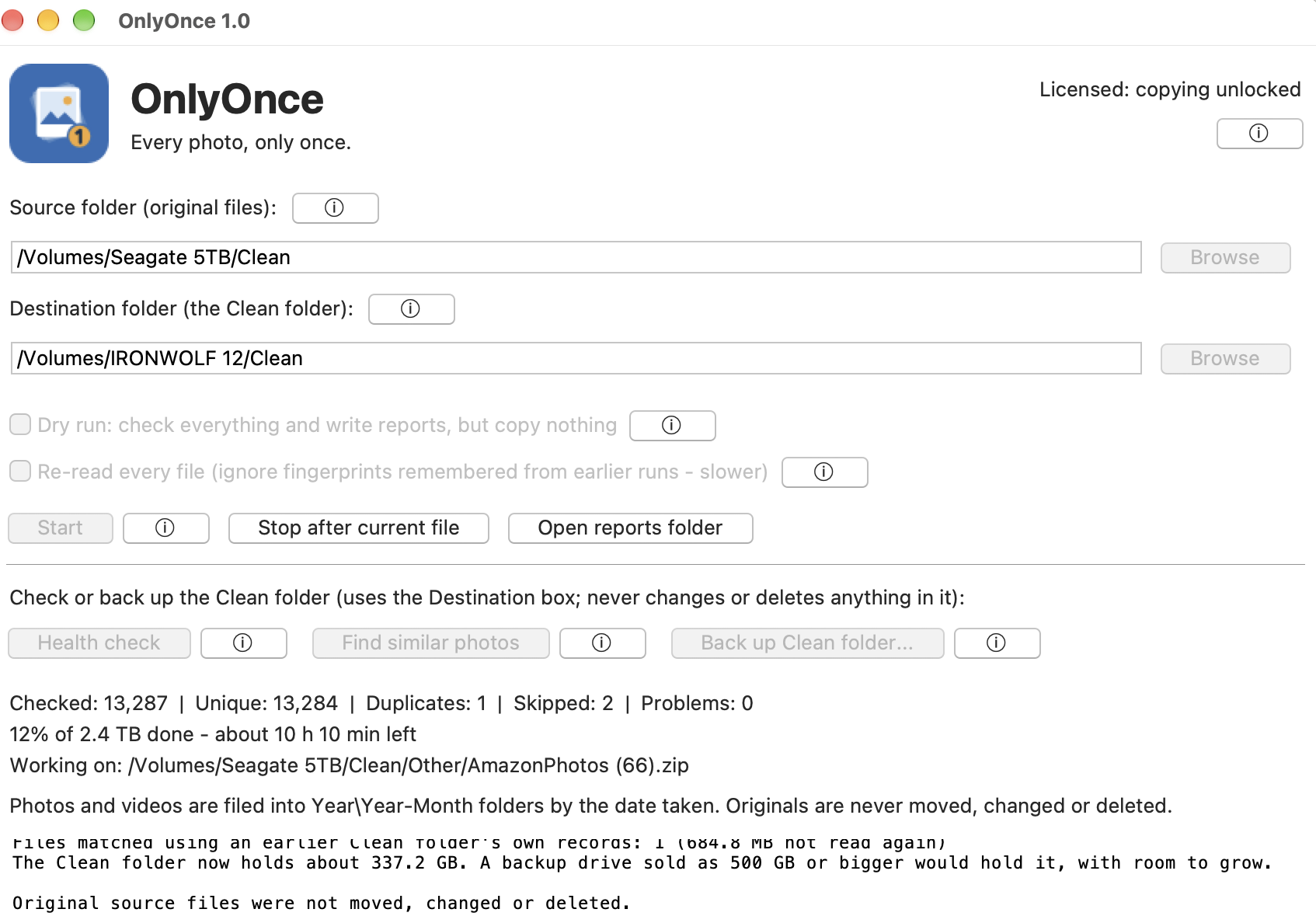
OnlyOnce reads every file and works out which ones are duplicates. It tells you how many there are, how big your tidy library will be and how much space you'd free up, and writes the full details into spreadsheets so you can see exactly what it would do. Nothing is copied.
Step 3
Unlock and copy
Happy with what you see? Add your licence key and run it for real. OnlyOnce copies one checked copy of each file into your Clean folder and sorts everything by date.
[Screenshot: the OnlyOnce window]
Description: OnlyOnce removing duplicate photos on a Mac
Got more old drives in a cupboard? Run it again with the next one. OnlyOnce remembers what's already in your library and only adds what's new, which makes it ideal for adding each new phone backup in future.
Not sure what an option does? Every button has a small ⓘ beside it that explains what it's for and when to use it.
What you end up with
Your Clean folder
├── Photos
│   ├── 2009
│   │   ├── 2009-07
│   │   └── 2009-12
│   └── Undated
├── Videos
│   └── 2019
│       └── 2019-08
├── My edited videos  (films you made in iMovie, Quik and other apps)
├── Not from my camera
│   ├── Screenshots  (sorted by year and month too)
│   └── Films and TV
├── Music
├── Documents
├── Other
├── Review   (anything that couldn't be read or copied)
└── Reports  (spreadsheets of every decision)
Description: Photos sorted into year and month folders by OnlyOnce
The date comes from inside the photo or video itself (or from a date in its name, as WhatsApp uses): the moment it was taken, not the day it was last copied. If a file has no real date, it goes in Undated rather than getting a wrong one.
Safe by design
Built so it can't lose your photos
Your originals are never touched. OnlyOnce only reads them. It never moves, changes or deletes a single original file.
It matches by contents, not by name. Every file gets a digital fingerprint (SHA-256, the same kind of check used to prove a file hasn't been altered). Two files only count as duplicates if their contents match exactly, byte for byte.
Every copy is checked. After copying a file, OnlyOnce reads the copy back and compares its fingerprint with the original. It only counts once they match.
Interruptions are safe. Stop it whenever you like, or even lose power halfway through. Half-finished copies are thrown away, and next time it carries on where it left off.
Nothing leaves your computer. Your photos are never uploaded anywhere, and OnlyOnce doesn't need the internet at all.
Nothing is hidden. Every decision goes into a spreadsheet: what was copied, which file each duplicate matched, and anything that needs a look.
Problem files are set aside, not lost. A file that can't be read goes in the Review folder and is listed. One that looks cut off is still copied, but flagged so you can check it.
Backups with proof. The Back up button copies your whole Clean folder to a second drive and reads every copy back to check it. It checks the drive has enough room before it starts. Later backups only copy what's new, and nothing is ever deleted from the backup.
Features
Everything else OnlyOnce does
Photos and videos kept apart
Each sorted into year and month folders.
iPhone Live Photos kept together
The photo and its short clip stay side by side with matching names.
Screenshots and downloads set aside
Screenshots, screen recordings and downloaded films and TV go into "Not from my camera", so your camera roll is just your camera roll. WhatsApp photos stay with the rest.
Your own films kept together
Videos you've made in iMovie, Quik, CapCut and other editing apps go into their own "My edited videos" folder, sorted by date.
Tidies a whole computer safely
Point it at your Mac or PC and it skips Windows, program and app folders automatically, so only your own files are copied.
Understands Apple Photos libraries
It copies only the original photos and videos from inside a Photos library, under their real names (IMG_1234.HEIC), never the thousands of preview copies.
Junk left behind
Phone thumbnail folders, hidden Mac files and iPhone edit files are skipped.
Missing file types fixed
A photo with no extension is recognised from its contents and given the right one. A file that isn't what its name says is flagged.
Long videos flagged
Anything over 20 minutes that might be a film or TV recording is listed so you can check it.
Find similar photos
Burst shots and near-identical pictures are grouped on a page of thumbnails so you can choose your favourites. It never deletes anything for you.
Health check
Re-reads your whole library and confirms every file still matches its fingerprint. Handy once a year, or before you retire an old drive.
Quicker second time round
Fingerprints from earlier runs are remembered, and a time estimate shows how long is left.
Move your library freely
Put it on a different drive and OnlyOnce still recognises everything in it.
Windows and Mac
The same library works on both.
Download
Download OnlyOnce: free to try on Mac and Windows
The download is free, and so is the dry run. Point it at your own backups and see exactly how many duplicates you've got, and how much space you'd get back, before you spend a penny.
When you're ready to build your library, buy a licence for a one-off £9.99. Your licence key arrives by email straight away, and you type it into OnlyOnce to unlock the copy. No subscription, no monthly fee.
Works on Windows 10 and 11, and on Macs with Apple silicon (M1 or later) running macOS 13 Ventura or later.
FAQ
Duplicate photos: questions people ask
Will OnlyOnce delete any of my photos?
No. OnlyOnce never deletes, moves or changes your original files. It only copies into the new library you choose. Once you're happy with your library, and it's backed up, what you do with the old drives is up to you.
Is it really free?
The download and the dry run are free, with no time limit. The dry run checks every file, counts your duplicates and shows exactly what OnlyOnce would do. A one-off £9.99 licence unlocks the copy itself.
Is there a subscription?
No. You pay once, and there's no monthly fee and no cloud storage to rent.
Does it work on Mac and Windows?
Yes, there's a version for each. Your Clean folder works with both, so you can even add to the same library from a Mac one day and a Windows PC the next.
Can it tidy up the photos already on my computer?
Yes. It works on the computer's own drive just as well as on external ones, whether that's a Windows tower, a laptop or a Mac. Point it at the folders where photos pile up, like Pictures, Desktop and Downloads, or at the whole computer; it skips system and program folders for you.
How long does it take?
It depends on how many files you have and how fast your drives are. A few thousand photos take minutes. My biggest drive, 3.4 TB and 309,300 files on a USB hard drive, took just under 14 hours overnight. OnlyOnce shows a time estimate as it goes, and you can stop and carry on later.
How much space do I need?
Enough for one copy of everything unique. The dry run tells you how big your library will be before you start.
My photos are in iCloud, Google Photos or Amazon Photos. Will it work?
Yes, once they're downloaded. OnlyOnce works on any folder, whether it's on your computer's own drive, an external hard drive or a USB stick. Download your photos to a folder first, then point OnlyOnce at it.
What about photos that are nearly the same?
Only exact copies count as duplicates, so a slightly different shot is never left out. The Find similar photos button shows near-matches side by side, and you decide which to keep.
Does it handle videos, Live Photos and HEIC?
Yes: phone and camera videos, iPhone Live Photos and HEIC photos, WhatsApp pictures, RAW camera files and more.
Does it upload my photos anywhere?
No. Everything happens on your own computer, and your photos never leave it. OnlyOnce doesn't even need an internet connection: your licence key is checked on your computer too.
How do I back up my new library?
Plug in a second drive, click Back up Clean folder, and choose it. OnlyOnce copies everything, checks every copy, and next time only copies what's new. If the drive is too small, it says so before copying anything and tells you what size of drive to buy.
Is it safe to download?
Yes. OnlyOnce only reads your photos and never connects to the internet. Because it's a small independent program, your computer may show a warning the first time you open it. On Windows, click More info, then Run anyway. On a Mac, if it says it can't check the developer, open System Settings, choose Privacy & Security, and click Open Anyway.
The end result
Twenty years, one library
I ended up with one library of about 155,000 files, every photo and video in it once, sorted by the month it was taken and backed up to a second drive. For the first time in years, I can find the video of our first family holiday in about ten seconds.
Then I took it one step further. A free, open-source program called Immich runs on my Mac and reads the library. It can look, but it can't change anything. It gives me a Google Photos-style app on my phone, so at home I can search twenty years of pictures for "beach" or "birthday cake" in seconds, and nothing is uploaded to anyone's cloud. It's why I no longer need to pay for online photo storage.
If you've got a drawer of old phones or a stack of backup drives, give the free dry run a go. You might be surprised what's in there.
Richard Saunders, Understand Tech